

Originally written by Raja, updated by Dibyajyoti Kabi. First published August 24, 2017. Updated October 24, 2026.
To add a link or a colored background to your WhatsApp status, open the Updates tab and tap the pencil icon. Type your text or paste a link, tap the palette icon to change the background color, tap T to change the font, then tap send. For photo filters, pick a photo for your status and swipe up on it.
When this post first went up, text status, links and filters were brand new in WhatsApp beta 2.17.307. They’ve been part of the regular app for years now, and the Status tab is now called Updates, so I’ve rewritten the steps for the current app.
Key points
- Text status, background colors, fonts, links and photo filters are in the normal WhatsApp app. You don’t need the beta.
- Status lives in the Updates tab on current versions.
- Links in a text status are clickable for the people who view it.
- A status disappears after 24 hours.
- You can pick exactly who sees each status.
How do I make a colored text status on WhatsApp?
Use the pencil icon in the Updates tab. WhatsApp lists these steps on its help page for creating a status.
- Open WhatsApp and tap the Updates tab.
- Tap the pencil icon.
- Type your status.
- Tap the palette icon to change the background color. Keep tapping until you find one you like.
- Tap T to change the font and text color.
- Tap the send button.
You can add emoji from the keyboard, and on newer versions the toolbar also has stickers and music.
How do I add a link to my WhatsApp status?
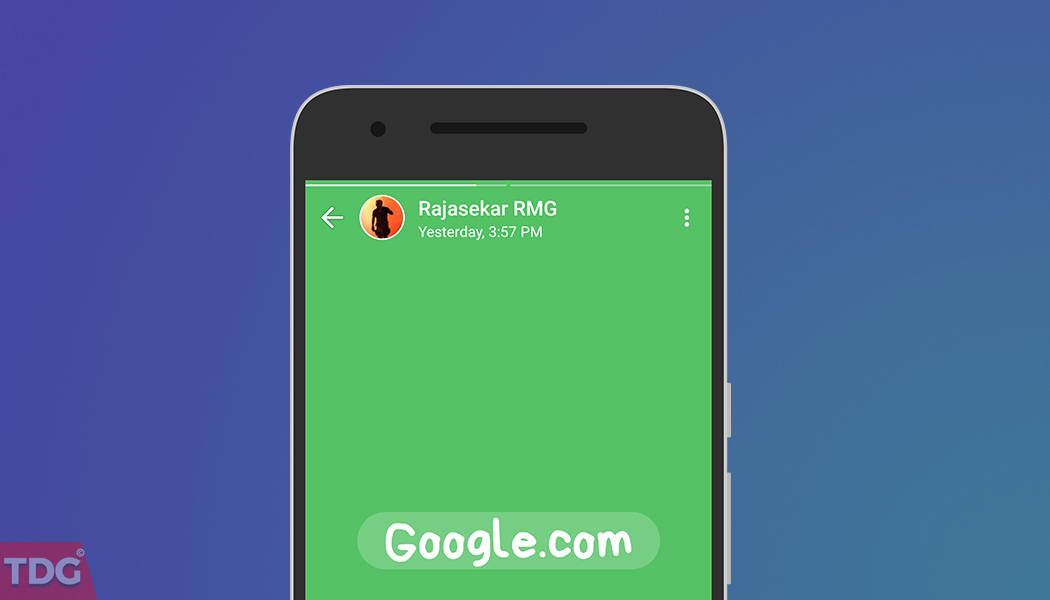
Paste the link into a text status. WhatsApp turns it into a clickable link, and on many links it also shows a preview with the page title and image.
- Copy the link from your browser or app.
- Open Updates and tap the pencil icon.
- Long press the text area and tap Paste.
- Add a short line about the link if you want.
- Tap send.
The people who view your status can tap the link to open it. Back in 2017 this was a big deal, because links in a status used to show up as plain text you couldn’t tap.
How do I add filters to a WhatsApp photo status?
Pick a photo, then swipe up on it to see the filters. This is the same filter strip WhatsApp added in that 2017 beta, and it still works the same way on most versions.
- Open Updates and tap the camera icon.
- Take a photo or pick one from your gallery.
- Swipe up on the photo to open the filters.
- Tap a filter to try it, then swipe down to close the strip.
- Add a caption if you want, then tap send.
Who can see my WhatsApp status?
Only the contacts you allow. Before you send, tap the audience option above the send button, or set it in Status privacy. WhatsApp explains the options on its About status page.
| Option | Who sees your status |
|---|---|
| My contacts | Everyone saved in your phone’s contacts |
| My contacts except | All your contacts except the ones you pick |
| Only share with | Only the contacts you pick |
Frequently asked questions
Can I edit a WhatsApp status after posting it?
No. Delete it and post a new one. Open Updates, tap My status, tap the three dot menu next to the update and tap Delete.
Why can’t my friends see my status?
They need to have your number saved in their contacts too, and they need to be on your status privacy list. If statuses don’t show up at all, check notification and data settings with my WhatsApp notification fix guide.
How long does a WhatsApp status stay up?
24 hours. After that it disappears on its own.
Related guides
That’s it. A colored text status with a link is a quick way to share something with everyone at once.
If something on this screen looks different on your phone, leave a comment with your phone model and WhatsApp version, and I’ll point you to the right button.





Like Snapchat 🙂